Image optimisation tips for Framer sites
Robin Louw
|
Framer automatically optimises images for the web, but sometimes choosing the right format and image size can make a huge impact on bandwidth usage, resulting in faster sites. This guide will cover when to choose the right format and also compare the results of the published site.
Sizing images for the web
A common mistake for novices when uploading image assets is to upload them at their full high DPI resolution. This is great for maintaining image quality but isn’t always ideal for the web as it can significantly slow down a website.
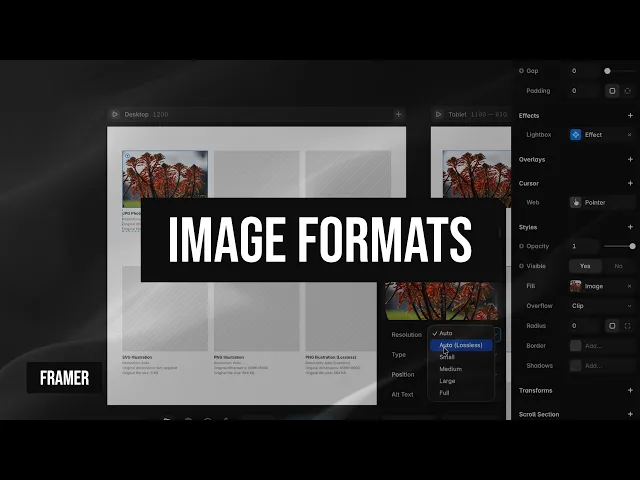
In most cases, you don’t need to resize images manually as Framer automatically resizes and optimises them. However, if you have cards that will never display an image larger than 400px, it’s a good practice in this example to upload images with a maximum resolution of 800px (or double the size of the image frame) should be sufficient. Also, if uploading images at their full size, ensure it is not too big and at a reasonable resolution for a 4K or 8K display and set the resolution to Auto or Auto (Lossless) to prevent visual artefacts.
You can learn more about how Framer optimises images here.
Choosing the right image format
When choosing the right format, consider a few questions: is it a raster or vector image? Should it have transparency? Will it be animated? Does Framer support the chosen format?
Framer supports the following raster image formats: JPEG, PNG, WebP, and GIF.
WebP is a raster graphics file format developed by Google and intended as a replacement for JPEG, PNG, and GIF. And AVIF (AV1 Image File Format) is an open, royalty-free file format specification for storing images or image sequences and only recently supported by all major web browsers. WebP and AVIF are recommended image formats for the web.
Framer automatically converts JPEG, PNG, and GIF to WebP or AVIF, so there is no need to convert them yourself. If a browser doesn’t support AVIF or WebP, it defaults to an optimised version of the original.
SVG, on the other hand, is a vector graphics format and does not have the same limitations regarding resolution or file size. You can upload SVGs, and these will be optimised using SVGO. If an SVG is overly complex or contains an embedded graphic, then it would be best to upload it as a PNG.
Recommended image formats:
Source file | Upload as |
|---|---|
Photos or graphics (lossy) | JPG |
Photos or graphics (lossless or without visual artefacts) | PNG |
Graphics with transparency | PNG |
Vectors | SVG or PNG |
Animated GIF | As is or use a more efficient media format |
WebP | As is or use a more efficient media format |
Uploading to Framer
As an experiment, I will be uploading and comparing the formats: JPG, PNG, and SVG. I will upload the same 18-megapixel photo as a JPG (lossy) and PNG (lossless), and the same vector image as SVG and PNG, and then compare the results. I will also automatically add ALT tags by using the agent using the prompt "Add the Alt text tags for all images"
Results
After uploading the images and publishing the site. The images were downloaded from the published page to be inspected. The image was downloaded twice, from the thumbnail and from the Lightbox or detailed view.
As expected, Framer converted the images to WebP and AVIF. Comparing the file size and image dimensions to the original showed a significant reduction in file size, as well as automatic resizing of the thumbnails. The vector image uploaded as PNG set to auto (lossless) also reduced the file size. This ensures a fully optimised website experience with very little effort.

Thanks for visiting Design Chillout! While you’re here, don’t forget to checkout the designer toolkit or grab something from the cooler box!
Affiliate Disclaimer:
This page contains affiliate links. Site content is supported by awesome visitors like you who buy after clicking on a link, at no extra cost to you.
AI disclaimer:
This article contains original content. However, AI may have been used to generate content from existing sources, or to correct the grammar, spelling, and formatting.
Advertisement