A comprehensive checklist for launching a Framer site

Author:

|

Published:

|

Updated:

Watch on YouTube

Getting ready to publish your Framer site? Use this pre-launch checklist to review your content, device layouts, accessibility and settings before connecting your domain.

You can watch the full walkthrough in the video above, or read on for a detailed guide.

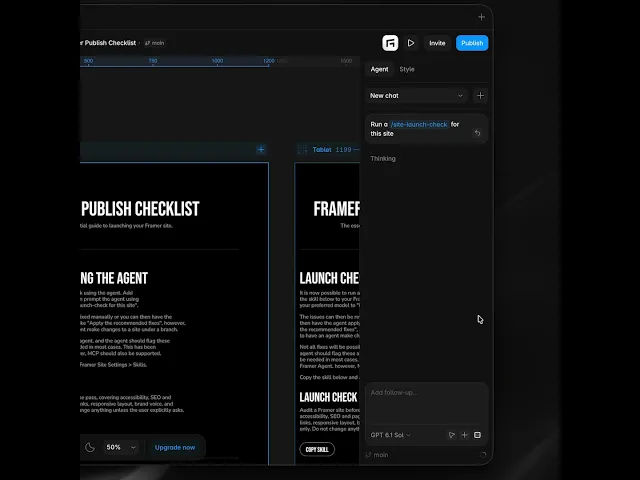
Update: It is now possible to run a launch check using the agent.

The Framer Publish Checklist has been updated to include a single skill to prompt that the agent can run to audit your site before launching. The agent will not make any changes and list all the recommended fixes before publishing. Add the skill below to your Framer site, then prompt the agent using your preferred model to "Run a /site-launch-check for this site".

The issues can then be reviewed and fixed manually, or you can then have the agent apply the fixes using a prompt like "Apply the recommended fixes“. However, it is only recommended to have an agent make changes to a site under a branch.

Not all fixes will be possible with the agent, and the agent should flag these, and a manual audit would still be needed in most cases. This has been tested using the Framer Agent, Framer MCP should also be supported.

Copy the skill below and add it under Framer Site Settings > Skills.
Site Launch Check skill

# Site Launch Check

Audit a Framer site before launch in one pass, covering accessibility, SEO and page metadata, forms, CMS content, links, responsive layout, brand voice, and launch basics. Review only. Do not change anything unless the user explicitly asks.

## Scope

- Review the whole site unless the user names specific pages, collections, or areas. Work only within that scope.
- Inspect desktop, tablet, and phone breakpoints separately.
- Page copy may live in components or layout templates. Check those, or inspect screenshots, before judging a page.
- Keep project settings and configured states separate from behavior that can only be confirmed on the published site.

## 1. Accessibility

- Heading order, semantic tags, and content structure.
- Image alt text, and decorative images treated as decorative.
- Accessible labels for links, buttons, icons, and form fields.
- Color contrast, text readability, focus states, and touch targets.
- Responsive reflow across breakpoints.
- Motion, autoplay, and reduced-motion settings.
- Meaning that relies only on color, position, or animation.
- Page language settings where exposed.

## 2. SEO and page metadata

- Check the site default title, description, and most common brand title format.
- For each page: title identifies the specific topic (about 50–60 characters), description explains what visitors find or do (about 120–160 characters). These are guides, not limits.
- Flag missing, generic, or duplicate titles and descriptions. Flag brand-format inconsistencies, but don’t rewrite accurate titles for format alone.
- Check search visibility. Flag a hidden Home, Pricing, or other important public page as a possible mistake.
- Check social preview images; for CMS detail pages, check whether they use an item image field.
- For CMS detail pages, check that the description is bound to a suitable field and test against several items, including one with missing or long content.
- Check URLs and redirects for broken or misleading paths.
- If the site has multiple locales, note that localized metadata must be checked in the Localization view.

## 3. Forms

- Identify each form as native Framer, code component, or third-party embed. Mark settings controlled elsewhere as unverified.
- Submit button is linked to the intended form and clearly labeled (placement outside the form container is fine if linked).
- Each field: input type, submission name, required setting, and a visible label. Placeholder text alone is not a label. Check group and option labels for checkboxes and radios.
- Send To destination: a missing destination is a launch blocker. A configured destination does not prove delivery.
- Loading, success, error, and incomplete button states: report unclear or misleading feedback, don’t require every optional state. Describe states as configured, not tested.
- Check for clipped fields, unreadable labels, overlapping messages, or unreachable buttons on desktop and phone.
- Never submit a real entry or invent a destination email.

## 4. CMS content

- Review all collections. Learn each collection’s pattern before judging individual items. If there are no collections, say so and skip this section.
- Collections of 30 items or fewer: inspect every item. Larger: scan all items for suspicious values and closely inspect at least 15 (five each from start, middle, end, plus flagged items). State actual coverage.
- Keep visible items, drafts, and unknown-status items distinct. A visible setting is not proof an item is live.
- Find placeholder text, test items, editorial notes, and unfinished visible items.
- Compare similar items for inconsistent naming, capitalization, dates, categories, summaries, and field use.
- Before flagging an empty field, check its default and whether the page uses a fallback or hides the element. Don’t flag empty optional fields on their own.
- On detail-page templates, flag static item-specific content that would show wrong text or images across items.
- Check collection list filters, sort order, and limits; report the exact setting and affected items.
- Check references for missing or wrong targets, and slugs that are unfinished, misleading, or duplicated.
- List possibly repeated or outdated content as review candidates, not confirmed problems.

## 5. Links and content

- Navigation, buttons, anchors, and external links point to relevant, existing destinations. Flag links to draft pages.
- Spelling, placeholders, missing content, and unclear calls to action.

## 6. Brand voice

- Infer the voice from approved copy across several pages, not the target page alone: vocabulary, sentence length, point of view, formality, capitalization, punctuation, symbols, emoji, and CTA style.
- Flag copy (including navigation, buttons, forms, FAQs, metadata, and component copy) that breaks recurring conventions, uses generic marketing language, exaggerated claims, or unsupported facts.
- Label assumptions where evidence is missing or inconsistent.

## 7. Responsive design

- Overflow, overlaps, text wrapping, image crops, spacing, hidden content, and mobile navigation on each breakpoint.

## 8. Launch basics

- Homepage, favicon, domain, HTTPS, analytics, policy links, and obvious performance risks.

## Rules

- Never mark an item as passed when it could not be fully tested; use Needs manual testing or Unverified.
- Never claim a setting was checked or changed if it couldn’t be accessed.
- Don’t invent facts, keywords, or content to fill gaps.
- If the user asks for fixes: correct only clear typos and formatting inconsistencies with an unambiguous established pattern, and update metadata only where accurate content supports it. Don’t delete CMS items, change slugs, fields, references, visibility, drafts, filters, templates, required fields, social images, search visibility, or publish unless explicitly asked.

## Report

Start with a one-sentence readiness assessment and the coverage (pages, breakpoints, forms, collections and items scanned and closely inspected).

1. **Launch blockers** – issues that prevent use, submission, indexing, or create serious accessibility problems.
2. **Recommended fixes**
3. **Optional cleanup** – drafts, possible duplicates, or outdated content, with why each was flagged.
4. **Passed** – brief summary per area, without listing every item.
5. **Fixed** – only if changes were requested: area, page or item, field, before and after.
6. **Unverified and manual tests** – what couldn’t be inspected, and the steps to verify on the published site (form validation, feedback, delivery, focus order, live CMS status).

Number each issue and give: Page or collection item, Problem (with exact evidence), and Suggested fix (one specific action). Group identical issues but name every affected item. Don’t use Markdown tables except for a metadata summary (path, field, current value, suggested value, applied or drafted).

Continued below is the article on how to conduct a manual launch check without using an agent.

Content Review

Clear, error-free content builds trust and improves user experience. Here’s what to double-check:

  • Grammar & Spelling: Eliminate any typos or language errors.

  • Placeholder Text: Replace all “Lorem Ipsum” or filler content.

  • Style Consistency: Follow your brand’s style guide or a standard like the AP Stylebook.

  • Legibility: Make sure fonts are readable and text is visually balanced (avoid awkward line breaks or “orphans”).

Design Checklist

Great design goes beyond aesthetics—it’s about function and consistency:

  • Brand Consistency: Align with your design system or brand identity.

  • Responsive Layouts: Check across desktop, tablet, and mobile.

  • Typography: Use consistent heading and body styles (H1–H6).

  • Spacing & Grids: Keep padding and margins uniform.

  • Media Quality: Optimise images and videos for fast loading.

  • Animations: Use purposeful, performance-friendly animations.

  • Details: Add a favicon, hover states (desktop), 404 page, and social share images.

Accessibility Essentials

A more accessible site means a better experience for all users and a boost in SEO:

  • Semantic Tags: Use correct HTML tags (e.g., <nav>, <section>, <footer>).

  • Alt Text: Add meaningful alt descriptions to images.

  • ARIA Labels: For screen readers and assistive tech.

  • Colour Contrast: Ensure text is readable for visually impaired users.

  • Form Labels: Include descriptive labels and helpful instructions.

SEO & Conversion Tips

Make your site easier to find and ready to convert visitors into customers:

  • SEO Titles & Descriptions: Set unique, relevant titles for each page.

  • URL Structure & Sitemap: Ensure URLs are clean and logical.

  • Search Visibility: Tick “Show page in search engines” in Framer settings.

  • Tracking: Add third-party analytics, chatbot, or conversion tools as needed.

  • CTA Functionality: Make sure forms and calls-to-action work and track properly.

Custom Code & Third-Party Integrations

Framer supports custom code and external tools—use with care:

  • Error-Free Code: Ensure custom scripts or overrides run smoothly.

  • Performance: Third-party tools should not slow your site.

  • Functionality: Test all integrations to verify they work correctly.

Legal Compliance

Depending on your region and site purpose, some legal obligations may apply:

  • Licensing: Ensure permission to use logos, images, or brand assets.

  • GDPR/Privacy: Add a cookie banner, privacy policy, and terms if needed.

  • Footer Links: Include all relevant legal pages and disclosures.

Final QA Testing

Before launching, do a comprehensive QA test:

  • No Broken Links: All links and buttons should work.

  • Navigation: Functional across all devices and browsers.

  • Performance: Optimise your site with tools like PageSpeed Insights or Lighthouse.

  • Cross-Device Testing: Review on desktop, tablet, phone—and with accessibility tools.

Launch with Confidence

Use this checklist as a starting point for your launch review. Not every step will apply to your project, so focus on the checks your site needs before publishing.

Congratulations on your upcoming launch!

Watch the full walkthrough video above for a visual guide through every step.

View and remix the checklist for free

Try Framer for free

Hire a Framer Expert


Thanks for visiting Design Chillout! Explore the designer toolkit or grab something from the cooler box!

Affiliate Disclaimer:
This page contains affiliate links. Site content is supported by awesome visitors like you who buy after clicking on a link, at no extra cost to you.

AI disclaimer:
This article contains original content. However, AI may have been used to generate content from existing sources, or to correct the grammar, spelling, and formatting.

Advertisement